Offline licensing
Install your license.
Generator and Analyzer use the same four-step process. These screenshots show Analyzer, but the controls and license format are identical in both products.
-
01
Open About.
Launch the application and click the ⓘ About button in the upper-right corner.
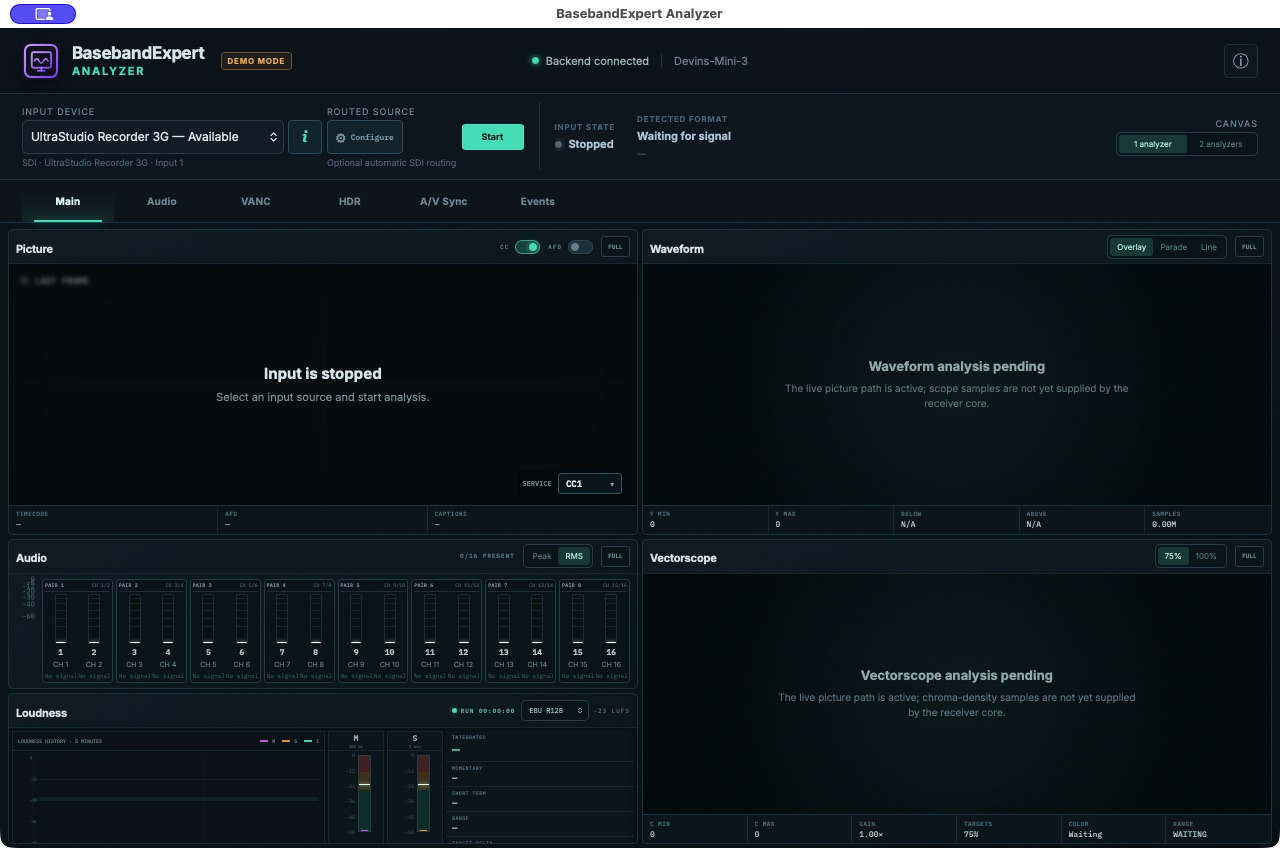
The About button is available from the main application window. -
02
Choose Import license.
In the About dialog, click Import license….
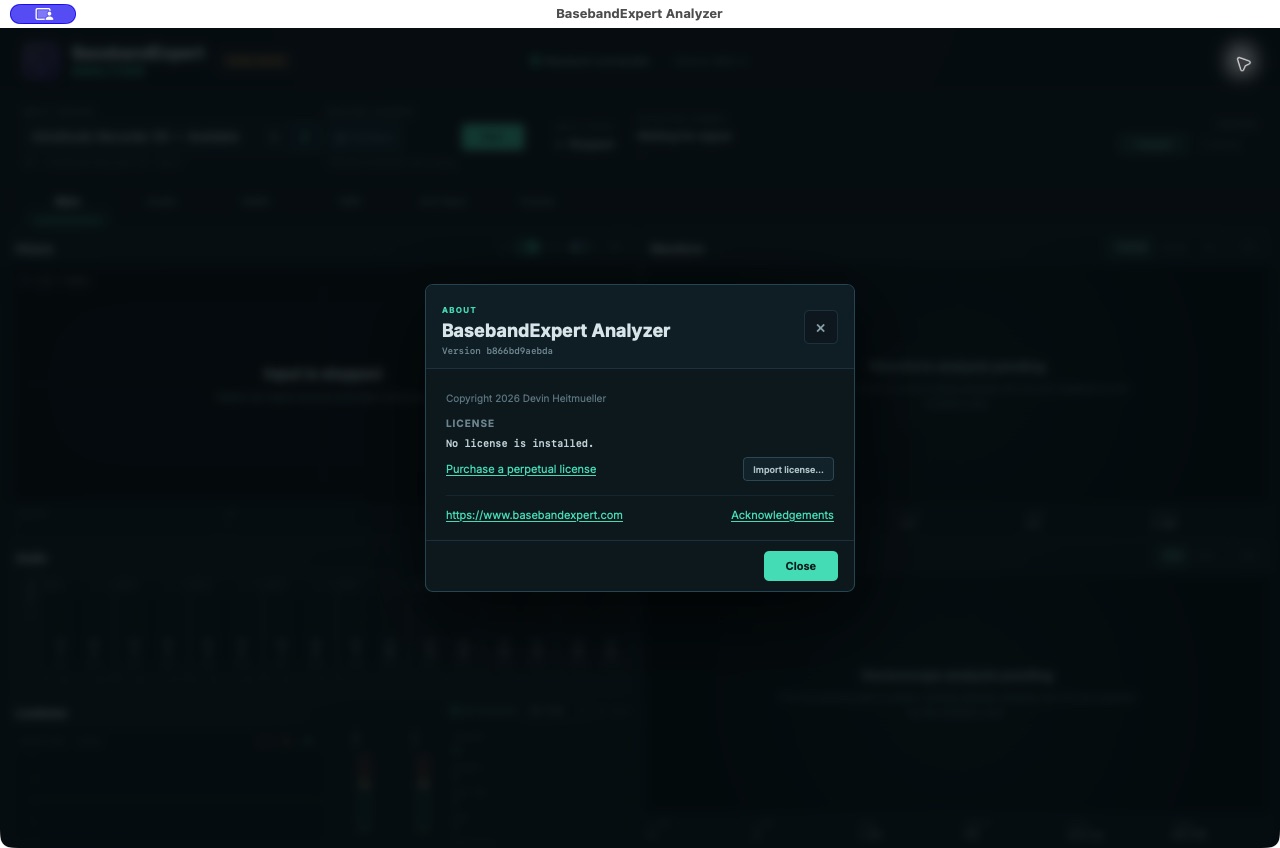
An unlicensed installation offers the Import license action. -
03
Select the delivered file.
Locate the
.belicensefile attached to your fulfillment email, select it, and click Open.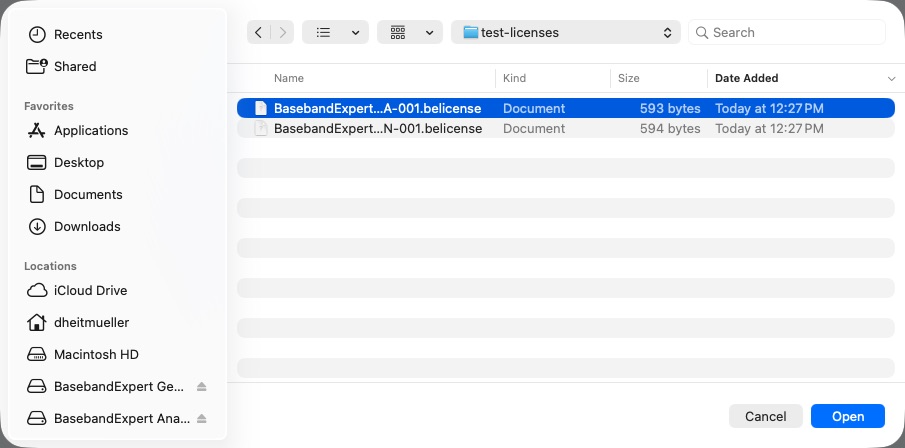
The license is a small, portable .belicensefile. -
04
Confirm the licensed name.
The About dialog now shows the licensed individual and organization. The application validates the installed license locally and does not require an internet connection.
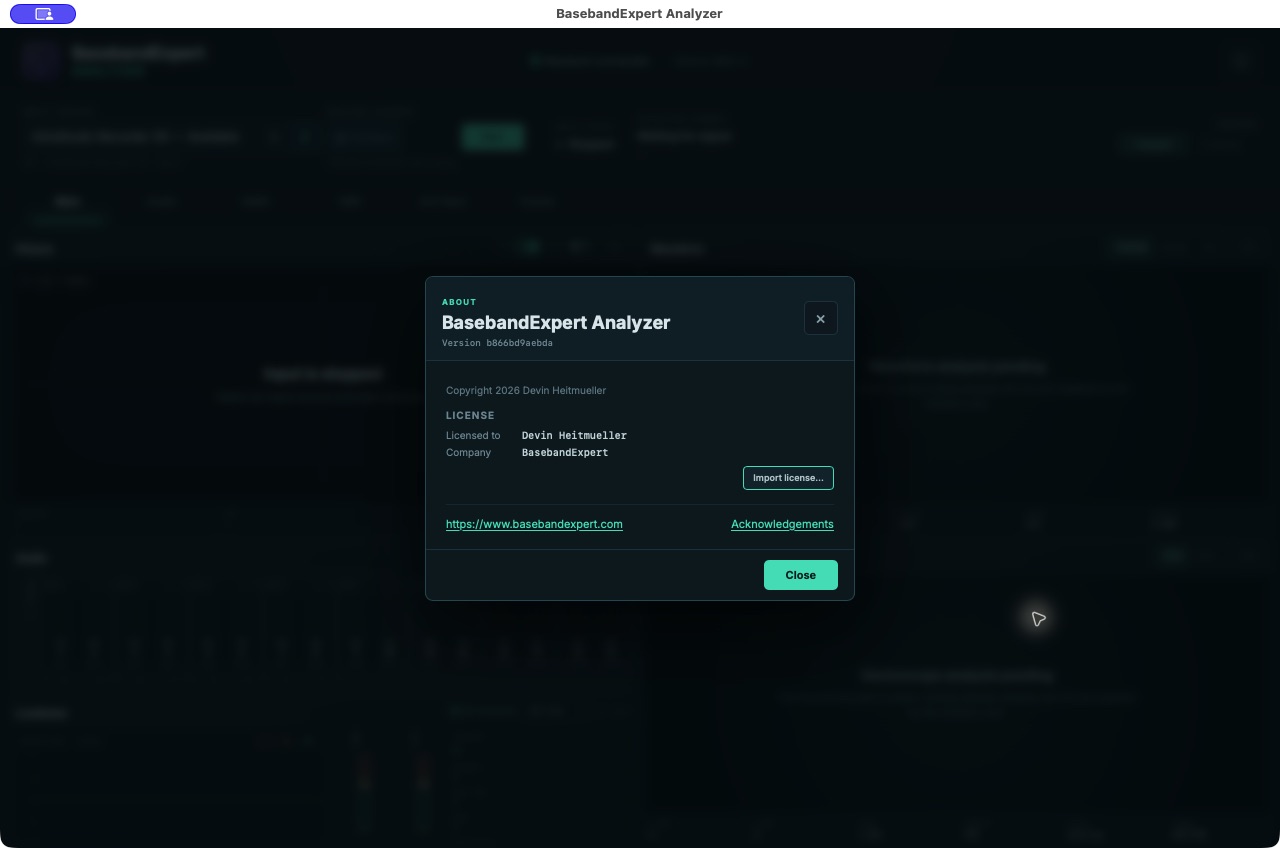
The named license is installed and ready to use.